Accessing Trust Credentialing on a Web Browser
Last updated: August 21, 2026
The VectorCare Trust mobile web experience has been deprecated and is currently scheduled to be replaced in 2026.
This article outlines the steps for accessing Trust Credentialing on a web browser such as Google Chrome from your Desktop or Laptop computer.
Overview
The My Documents page allows users to view, share, renew and archive all of their active and expired personal credentials, certifications, licenses, or other document types.
Homepage
When you first log into the app, you will be taken to the Home page.
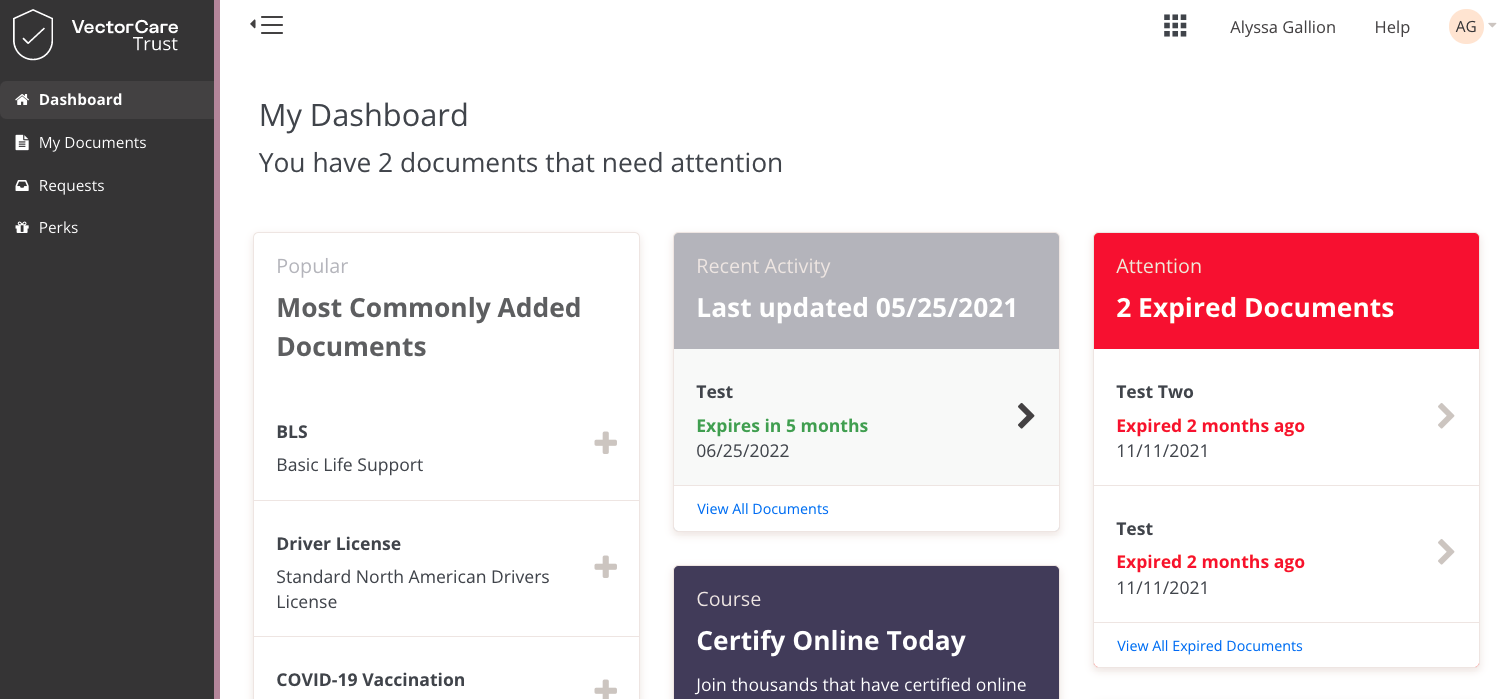
Here you will see a dashboard that offers shortcuts, tips and tricks on the following items:
Adding a new document
Updating the App
Requests that require attention
Expired documents
Upcoming expiring documents
Ability to add your profession for more specific template suggestions
Uploading a COVID19 card
Suggestions for popular document types
Referral and perks program information
Viewing Documents
Users can access the My Documents section of Trust by heading to credentialing.vectorcare.com on their laptop or desktop, logging into their account, and selecting the document icon on the left-hand side of the screen.
Note: We recommend using Google Chrome to access Trust Credentialing.
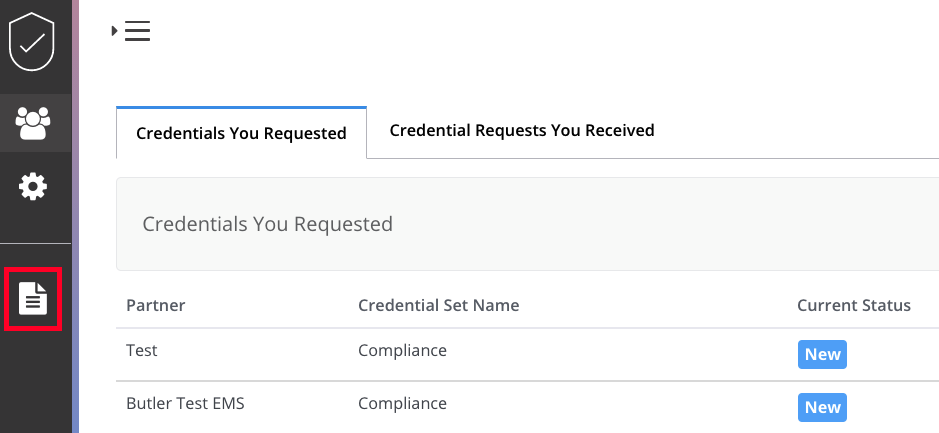
Next, the My Credentials page will appear and all expired and active credentials will be shown in a list view.
Adding Credentials
To add a credential, head to the My Documents section and scroll to the bottom of the page. Click the Add a Credential button.
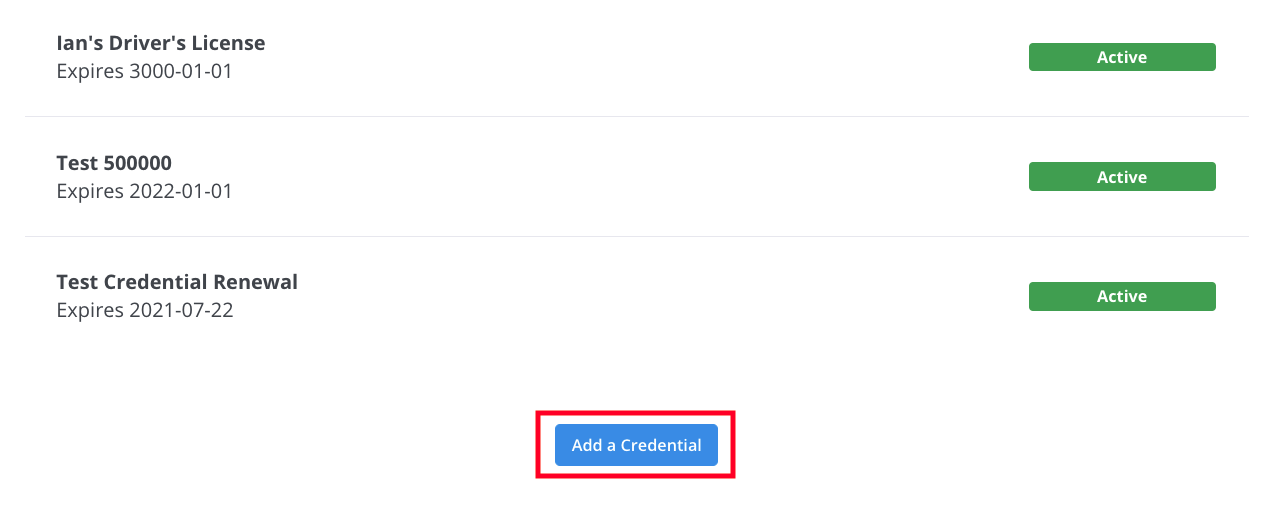
Once the Add a Credential button is selected, a model will appear.
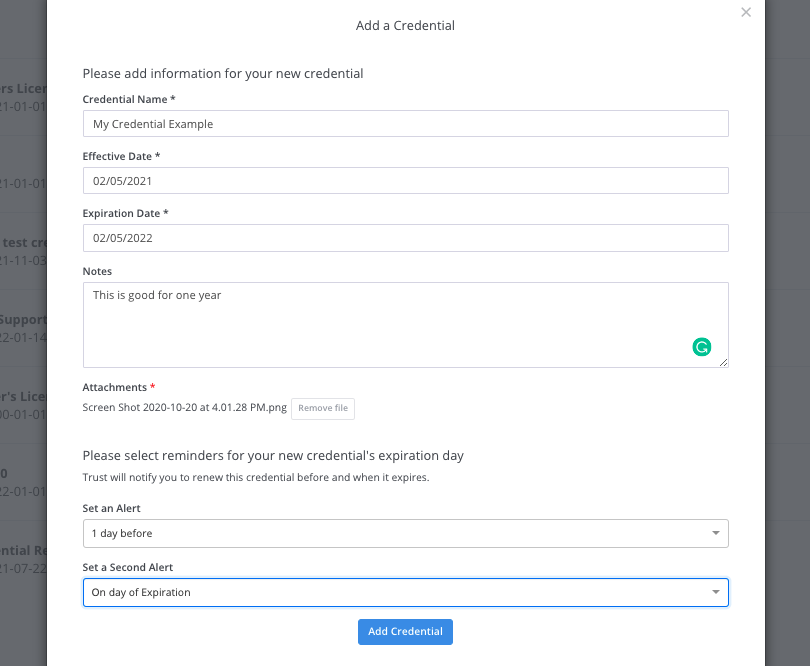
Fill out the following fields:
Credential Name: The title for the credential
Effective Date: The date that a credential is officially active
Expiration Date: The date that a credential is no longer active
Notes: Any additional details about this credential should go here
Attachment: Upload a credential document here. Accepted file types are JPEG, GIF, PNG, JPG, plain text, TIFF, and PDF. Note: Only one credential can be uploaded at one time.
Set an Alert: Time frames available to set alerts for upcoming expiring credentials
Set a Second Alert: Time frames available to set secondary alerts for upcoming expiring credentials
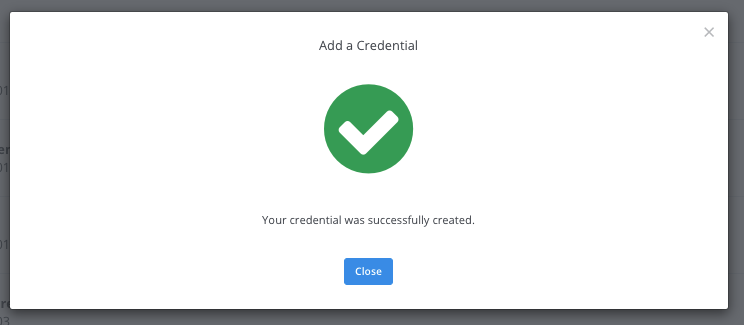
Once all fields are completed, click Add Credential. A confirmation will appear once the credential has been successfully uploaded.
Archiving Credentials
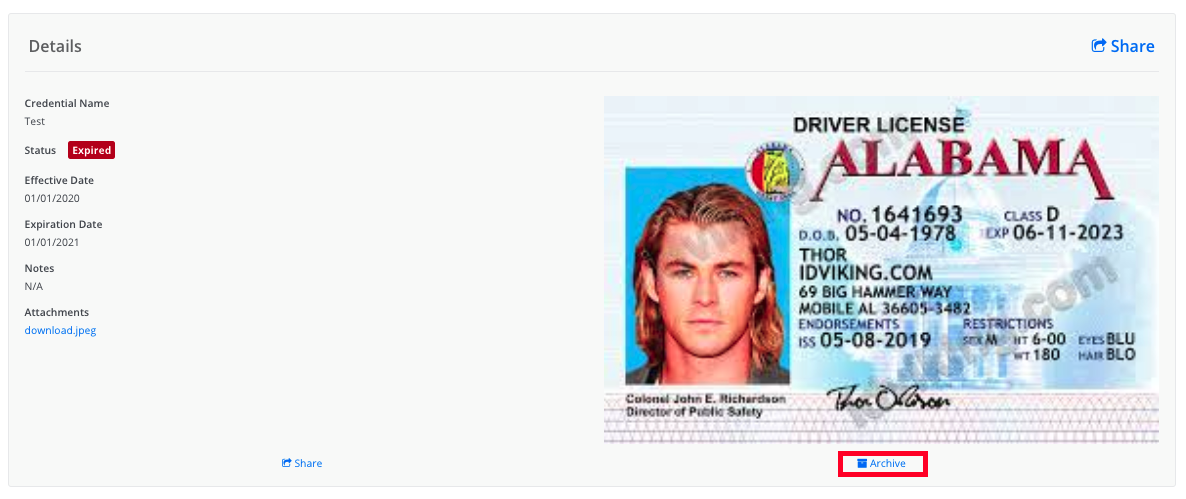
To archive a credential, click on the credential to view it. Next, click Archive on the bottom right-hand side of the credential. Once the credential is successfully archived, a banner will appear in green noting the change has been completed.
Renewing Credentials
Once credentials have expired, users have the ability to renew them. To renew a credential, select an expired credential from the My Credentials list view.
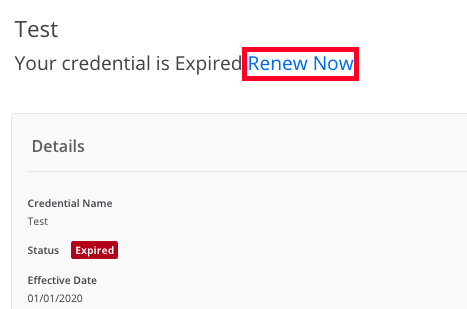
In the credential detail view, click Renew Now and a window will appear. Fill out the following fields:
Credential Name: The title for the credential
Effective Date: The date that a credential is officially active
Expiration Date: The date that a credential is no longer active
Notes: Any additional details about this credential should go here
Attachment: Upload a credential document here. Accepted file types are JPEG, GIF, PNG, JPG, plain text, TIFF, and PDF. Note: Only one credential can be uploaded at one time and the old credential document should be replaced with the most recent copy.
Set an Alert: Time frames available to set alerts for upcoming expiring credentials
Set a Second Alert: Time frames available to set secondary alerts for upcoming expiring credentials
Sharing a Single Credential via PDF
To share a single credential, click on the credential from the My Credentials list view. Next, click the Download PDF button and a PDF download will appear in your browser.
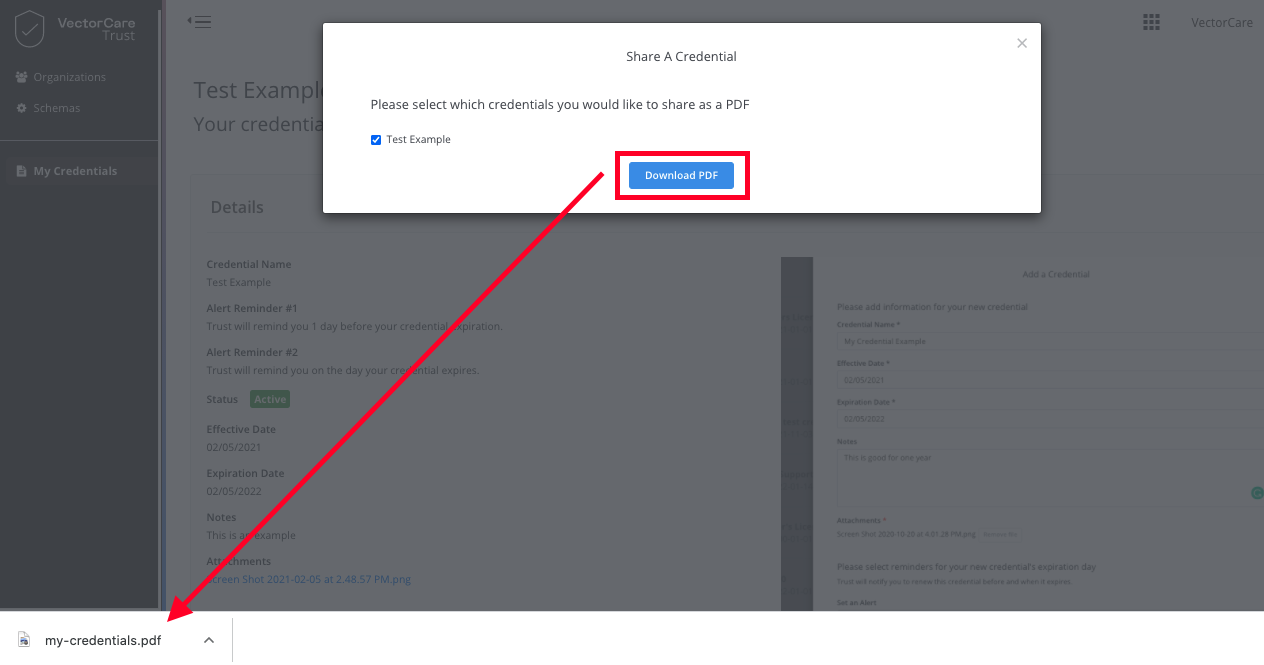
This credential can be attached to any communication tools that allow PDFs as a form of attachment.
Sharing Multiple Credentials via PDF
To share multiple credentials at once, navigate to the My Credentials section of the platform, listed in the left-hand navigation of the platform.
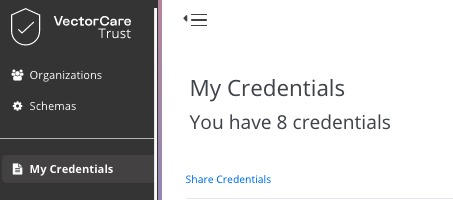
On the My Credentials page, click the Share Credentials button on the top left-hand side of the screen. Select the credentials that should be combined and click Download PDF.
All files will be saved in a combined PDF document that can be attached to any communication tool that allows for PDF attachments.
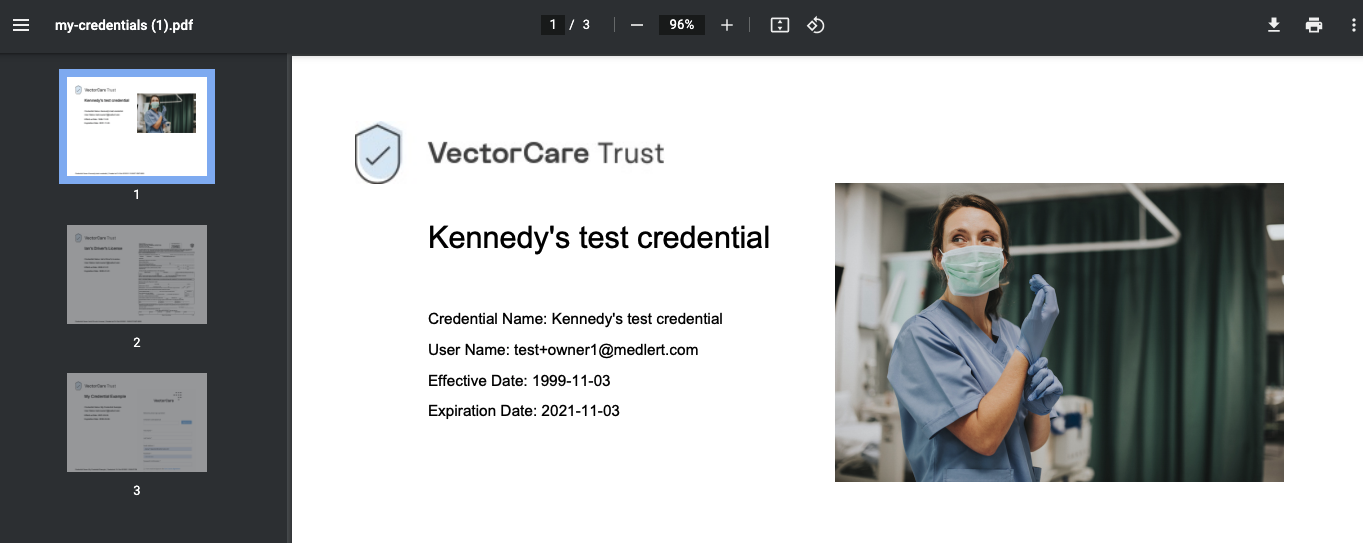
Note: Only active credentials should be shared. If a credential has expired, there is an option to renew it. Follow these steps for Renewing Credentials.
Signing Out of the Trust Credentialing
To sign out of Trust Credentialing, head to the User Profile icon in the top right-hand corner of the platform. Select the drop-down function and click Sign Out.