Accessing Trust Credentialing on Mobile Browsers
Last updated: August 21, 2026
The VectorCare Trust mobile web experience has been deprecated and is currently scheduled to be replaced in 2026.
The Trust Credentialing App for Android can be accessed via the web application on your phone. We recommend using Google Chrome to do so. The below article outlines accessing the app, where to find existing documents, how to add new documents, and how to respond to a document request.
Accessing Trust Credentialing for Android
To view Trust Credentialing for Android, head to credentialing.vectorcare.com and log in with your user name and password.
Homepage
When you first log into the mobile browser app, you will be taken to the Home page.
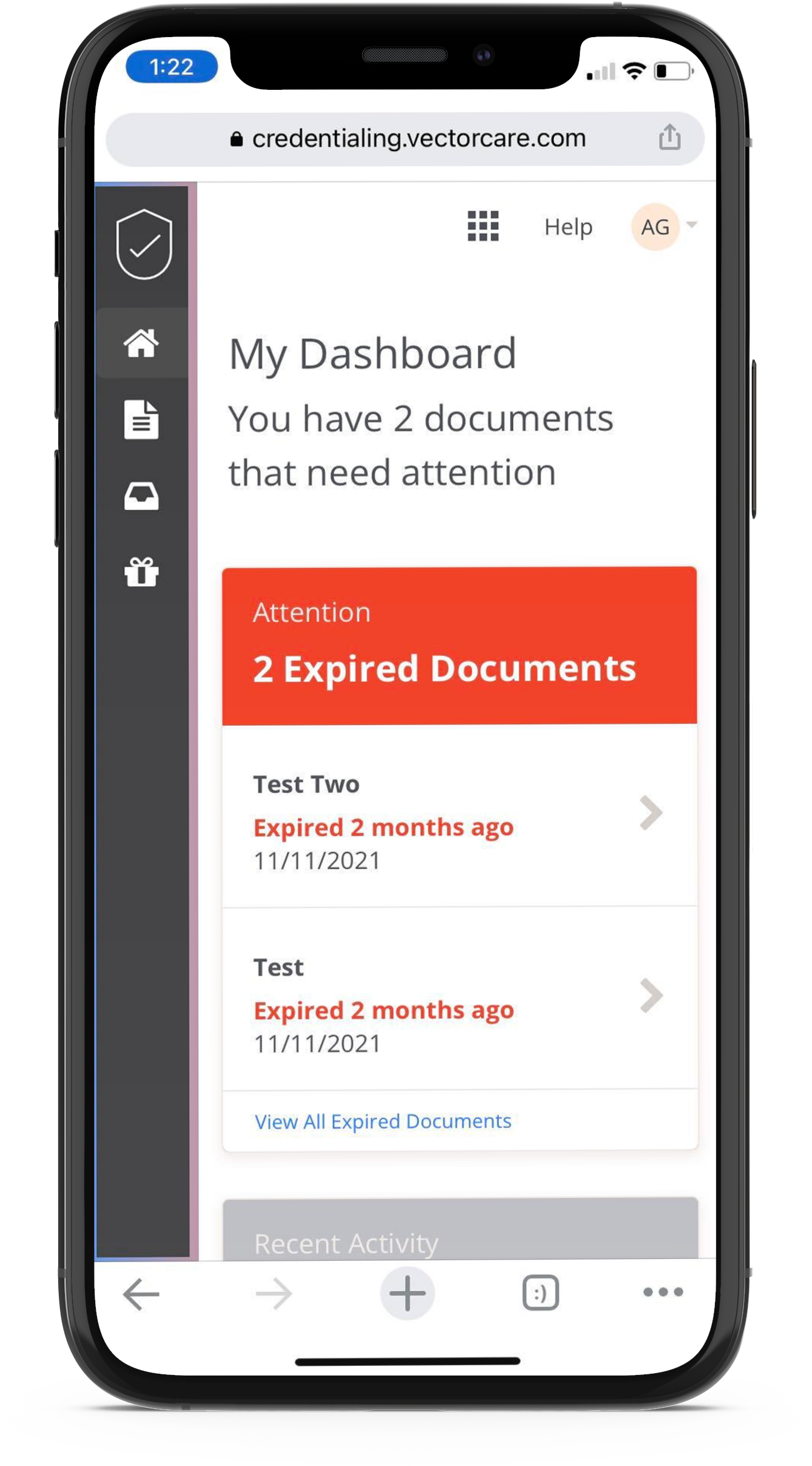
Here you will see a dashboard that offers shortcuts, tips and tricks on the following items:
Adding a new document
Updating the App
Requests that require attention
Expired documents
Upcoming expiring documents
Ability to add your profession for more specific template suggestions
Uploading a COVID19 card
Suggestions for popular document types
Referral and perks program information
My Documents
Once you have logged into your account, you will be taken to the My Documents overview page. Here, you will see the document:
Title: The title given when the document was uploaded
Expiration Date: The expiration date set when the document was uploaded
Status: The status of the document (i.e. Active)
Add Document: The Add Document button will allow you to upload more documents
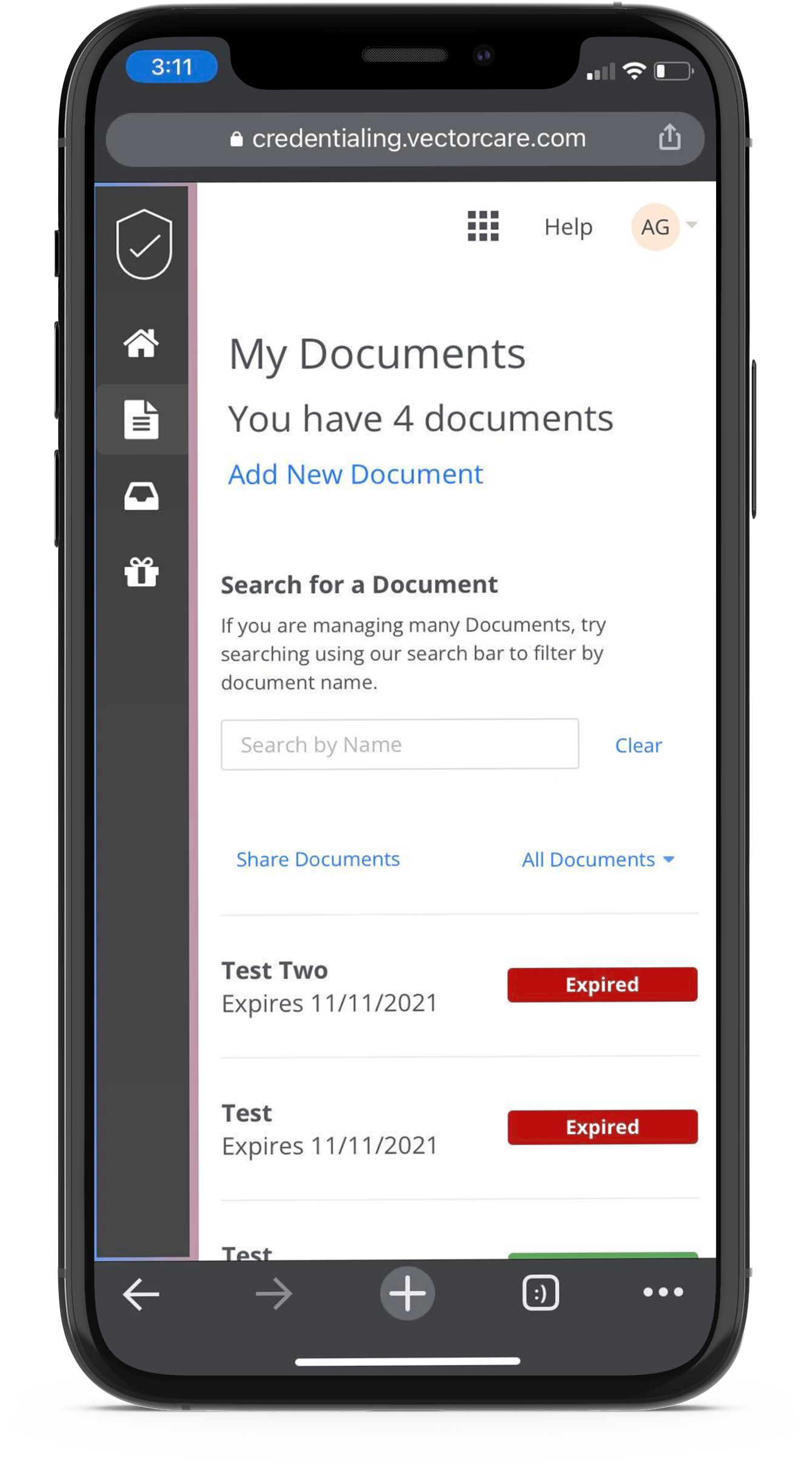
To access My Documents at any time, simply click the document icon located under the Trust logo.
Adding Documents
To add a new document, head to the My Documents tab on the left-hand side of the screen, located under the Trust logo.
Scroll to the bottom of the page and tap Add Document. A modal will appear with the following fields:
Document Name: The name of the document you are uploading (i.e. BLS Certificate). Note: Names should be selected that are easily memorable so that when an expiration date nears, you are able to remember which document should be renewed.
Document Type: Default, Drivers License, Generic Certification, and Generic License can be selected to categorize a document.
Effective Date: The date that the document became valid
Expiration Date: When the document expires (must be in the future)
Notes: Add any information that would be pertinent to explain the document outside of the above fields
Attachments: Upload the document here. Accepted file types are JPEG, GIF, PNG, JPG, plain text, TIFF, and PDF.
Alerts: There is an option to add a first alert and a second alert when a document is about to expire. Notifications are received via the email address you log in with.
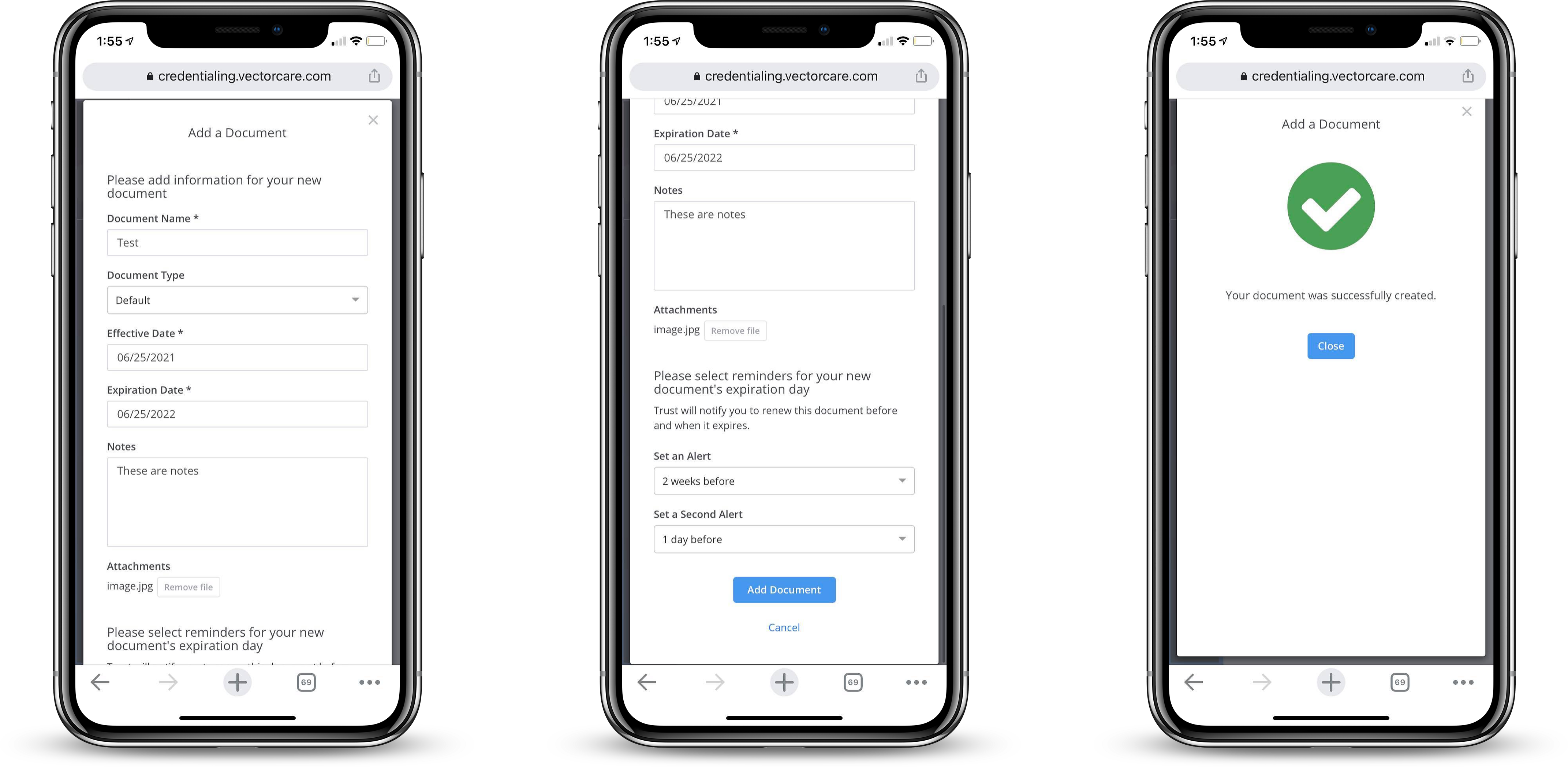
Once all necessary fields have been completed, tap Add Document.
Responding to Document Requests from Organizations
Organizations have the ability to send individuals requests for documents in order to keep their business compliant. You may receive a request from an organization to verify documents like licenses, driver licenses, certifications, or other credentials.
View a Document Request
To view a received document request, tap the Requests icon (below the My Documents icon). You will be taken to the Requests overview page.
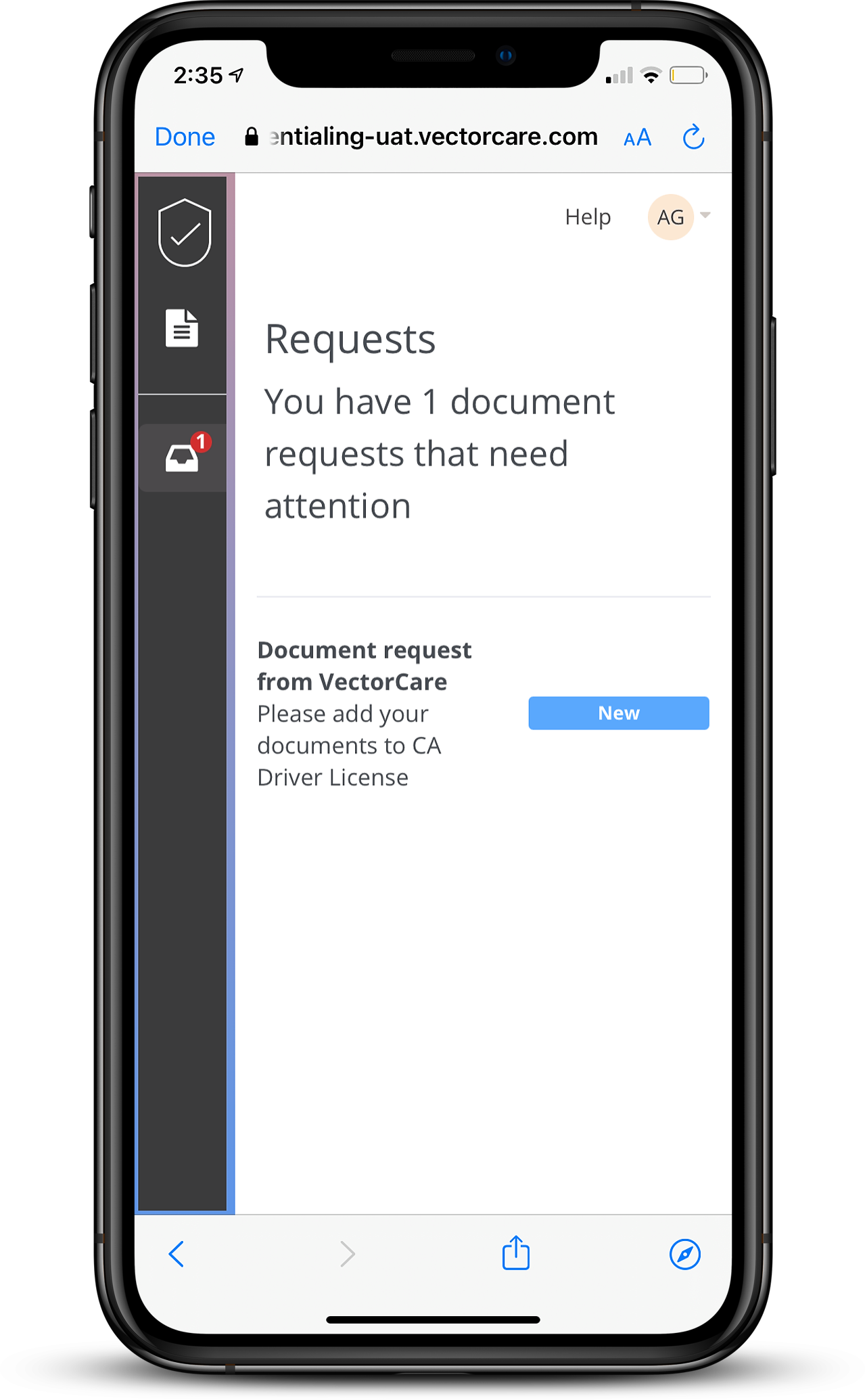
Respond to a Document Request
To respond to a document request, tap on the document request you would like to respond to (in the example above, we would tap Document Request from VectorCare). You will be taken to the Document Request Detail Page.
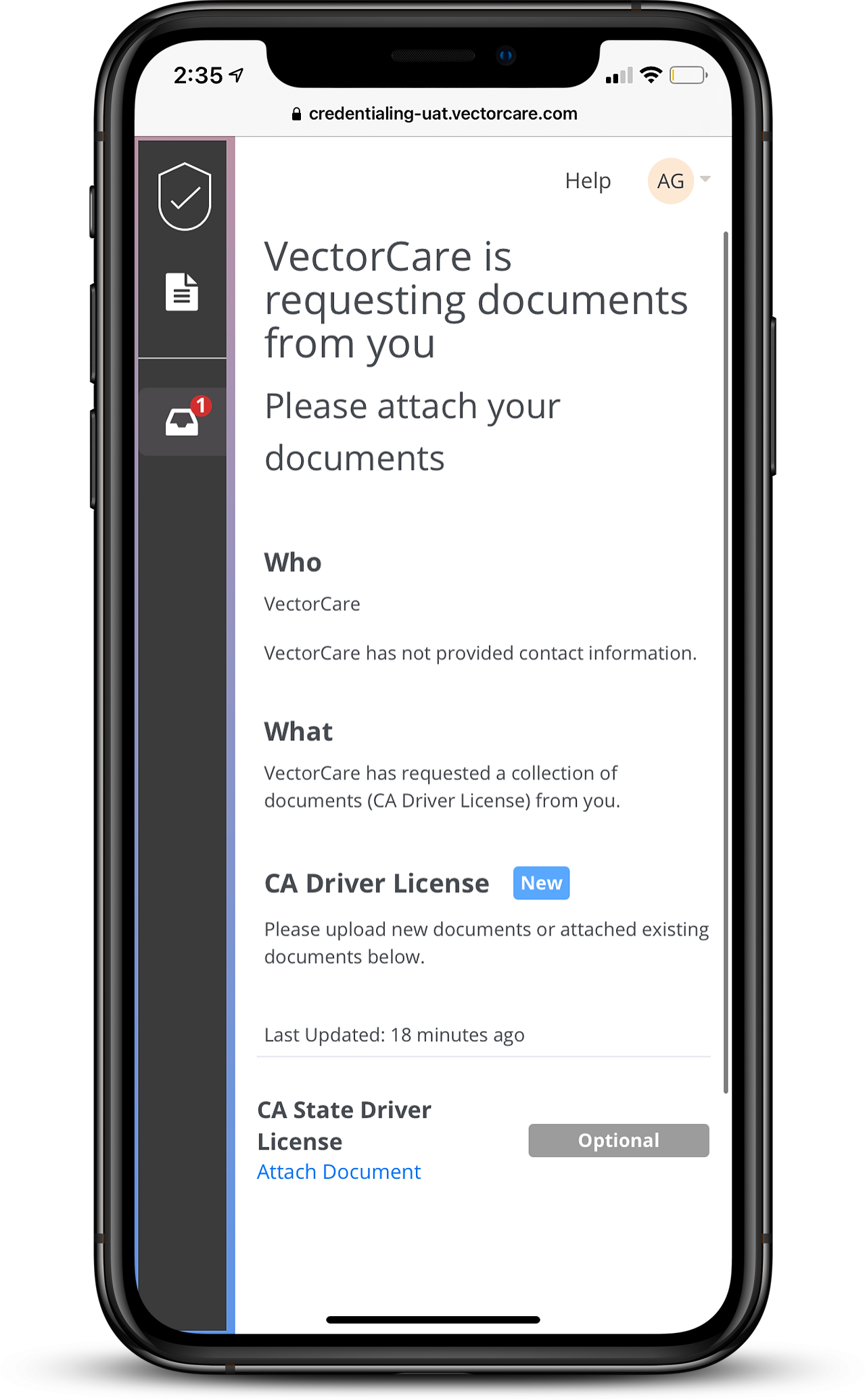
Next, tap the Attach Document button to add an attachment to the document request.
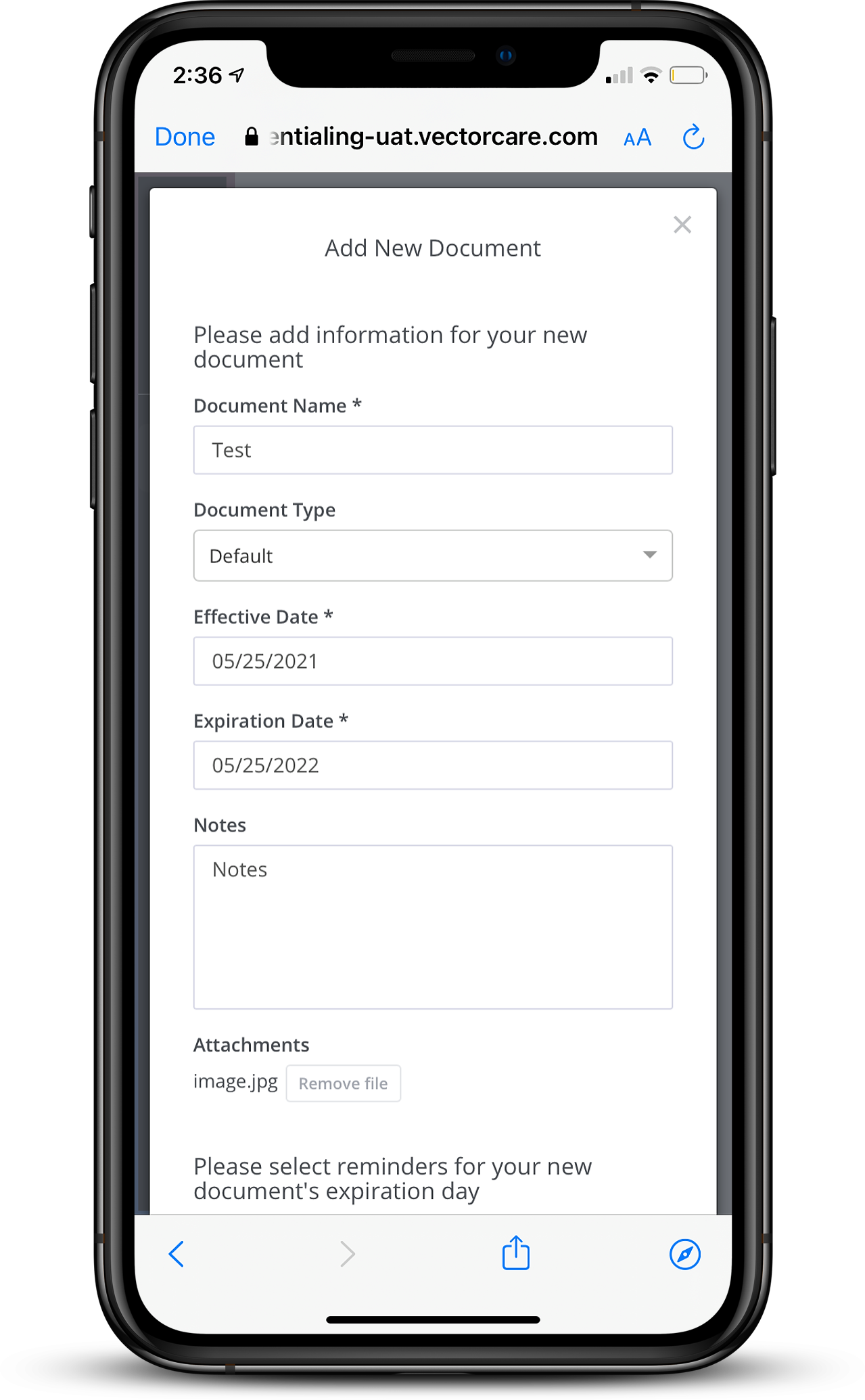
A modal will appear with the following fields:
Document Name: The name of the document you are uploading (i.e. BLS Certificate). Note: Names should be selected that are easily memorable so that when an expiration date nears, you are able to remember which document should be renewed.
Document Type: Default, Drivers License, Generic Certification, and Generic License can be selected to categorize a document.
Effective Date: The date that the document became valid
Expiration Date: When the document expires (must be in the future)
Notes: Add any information that would be pertinent to explain the document outside of the above fields
Attachments: Upload the document here. Accepted file types are JPEG, GIF, PNG, JPG, plain text, TIFF, and PDF.
Alerts: There is an option to add a first alert and a second alert when a document is about to expire. Notifications are received via the email address you log in with.
Once all necessary fields have been completed, tap Add Document. The status of the document request submission will change to Awaiting Review and will update to Approved or Declined dependent upon if the document was accepted or rejected by the requester.